Introduction & Setup

Who doesn’t like to play a space game, shoot asteroids, fight a space battle and save the universe? This is exactly what we will be doing here except you will also learn how to build it. In this multipart tutorial blog series, I will show you how to create a complete cross-platform game step-by-step. Our focus for this post will be building the core game. In the next parts, we will look at enhancing the game with more features.
We will be using Cocos2d-x and BlackBerry 10 Native SDK to build our game. BlackBerry 10 offers a powerful C/C++ based native gaming platform built on open standards. With support for a wide variety of game engines and open source frameworks, developing a game for BlackBerry 10 is simple, easy and fun.
Game Concept
It’s a space game so there have to be asteroids and bad guys. The concept is simple: command a spaceship through an asteroid field, shooting asteroids and avoiding collisions. After destroying asteroids, defeat the enemy ship to win the game.
Controls and Orientation
Whether your game is simple or complex, the control scheme can make or break the gameplay. It’s always tempting to use on-screen buttons. However, buttons take away from screen real estate and make for poor gameplay. So unless your gameplay absolutely requires buttons, avoid them and instead make use of touch input, gestures and accelerometer. For our game, we will be using accelerometer input for controlling the spaceship movement. For shooting, rather than restricting input to a button, we will let the user tap anywhere on the screen. Our game will use the default orientation (Portrait) for all BlackBerry 10 devices.
Aspect Ratio
BlackBerry 10 devices support two different aspect ratios depending on the form factor. If you haven’t done so, I would recommend reading through my earlier blog post on design considerations when developing a game for both form factors. Cocos2d-x does an excellent job in handling aspect ratio differences and in making sure the same code runs great on both devices. But to make this process work, we need to layout our sprites, UI controls and HUD elements relative to the screen width and height. To give you a better idea about how the game looks on both form factors, you will see a mix of screenshots taken using both form factors throughout the game building steps.
Tools and Setup
BlackBerry Native SDK:
If don’t have BlackBerry Native SDK set up, I would recommend going through the getting started instructions at the below link.
https://developer.blackberry.com/native/documentation/bb10/getting_started.html
Cocos2d-x:
1. Download Cocos2d-x from http://www.cocos2d-x.org/download (at the time of writing v2.2.2 is the latest stable release)
2. Unzip it
3. Open BlackBerry Native SDK, select File>Import
4. In the Import dialog, select General>Existing Projects into Workspace and click next
5. Browse to the directory you unzipped Cocos2d-x to in Step 2 and select it as the root directory.
6. In the projects selection, click deselect all. Select only the BlackBerry projects (proj.blackberry) Box2D, chipmunk, cocos2dx, CocosDenshion, extensions and HelloCpp (under multi-platform-cpp). Note: To maintain proper Cocos2d-x project structure and avoid compilation errors, make sure Copy projects into workspace is unselected.
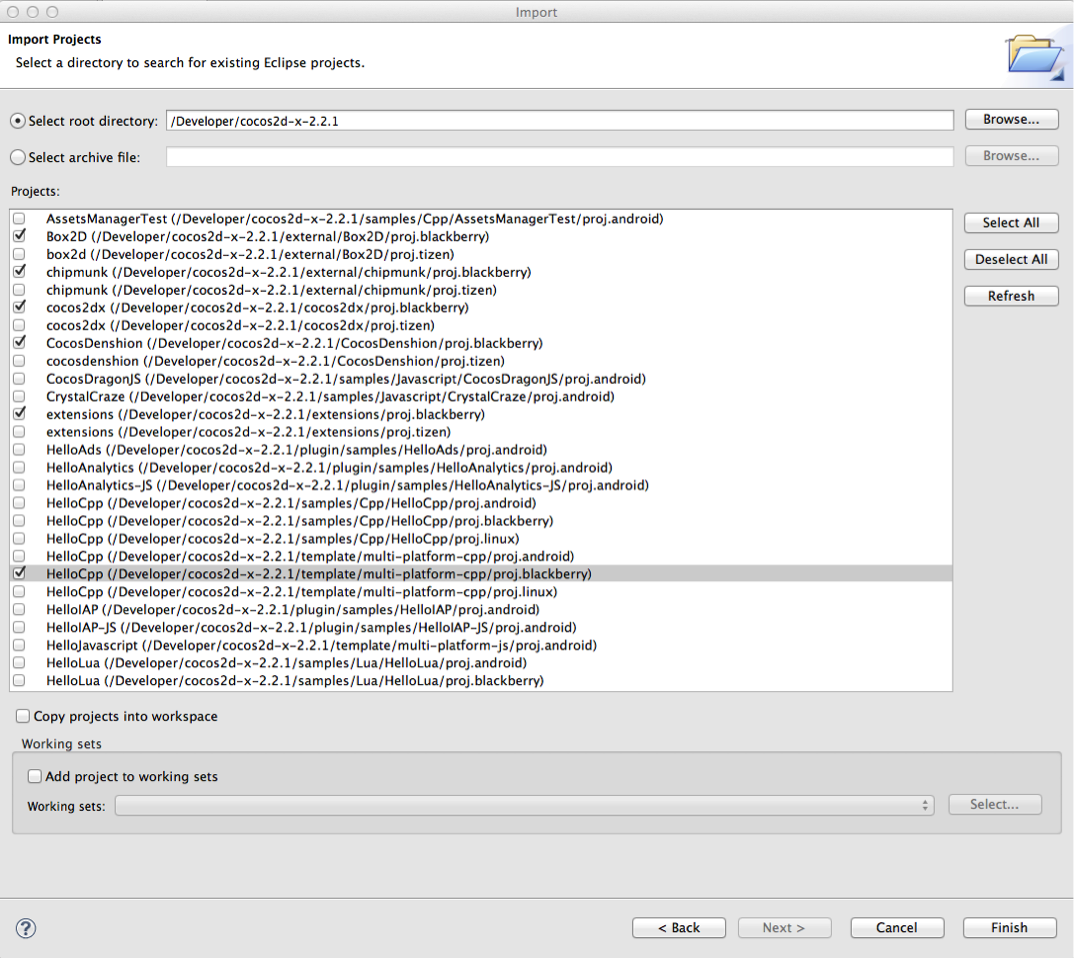
7. Once the projects are imported, select HelloCpp project in the project explorer and from the Project menu select build. This will build HelloCpp and all it’s dependencies including cocos2dx, CocosDenshion and the other projects we imported. So this step can take some time.
At this point you should be able to deploy HelloCpp to a device or simulator and see the below Cocos2d-x image. We will be using the HelloCpp project as a template and modifying it to create our game.
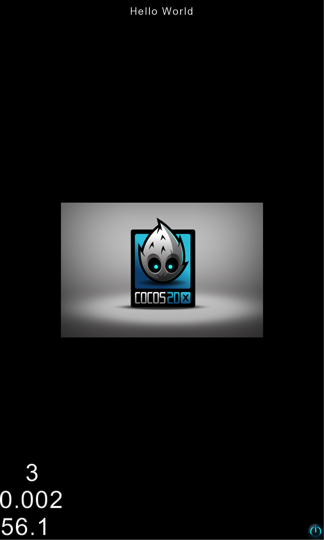
Note: If you are lost at the deployment step, BlackBerry Native SDK getting started guide mentioned above covers this.
 pratiksapra.com